
You can use the following syntax in Bash to count the number of files in each directory:
find . -type f | cut -d/ -f2 | sort | uniq -c | sort -nr
This particular example will return the total number of files in the current directory along with each subdirectory.
Here is what the various commands do:
- find , -type f: Return path of each file in current directory and all subdirectories
- cut -d/ -f2: Return only the second “field” using a forward slash as the delimiter. This will return only the directory name from the path
- sort: Sort the directory names
- uniq -c: Return the count of each unique directory name
- sort -nr: Sort the results in descending numerical order
The following example shows how to use this syntax in practice.
Example: How to Count Number of Files in Each Directory in Bash
Suppose we would like to count the number of files in each directory of our current directory in Bash.
We can use the ls command to first view all files and subdirectories in our current directory:
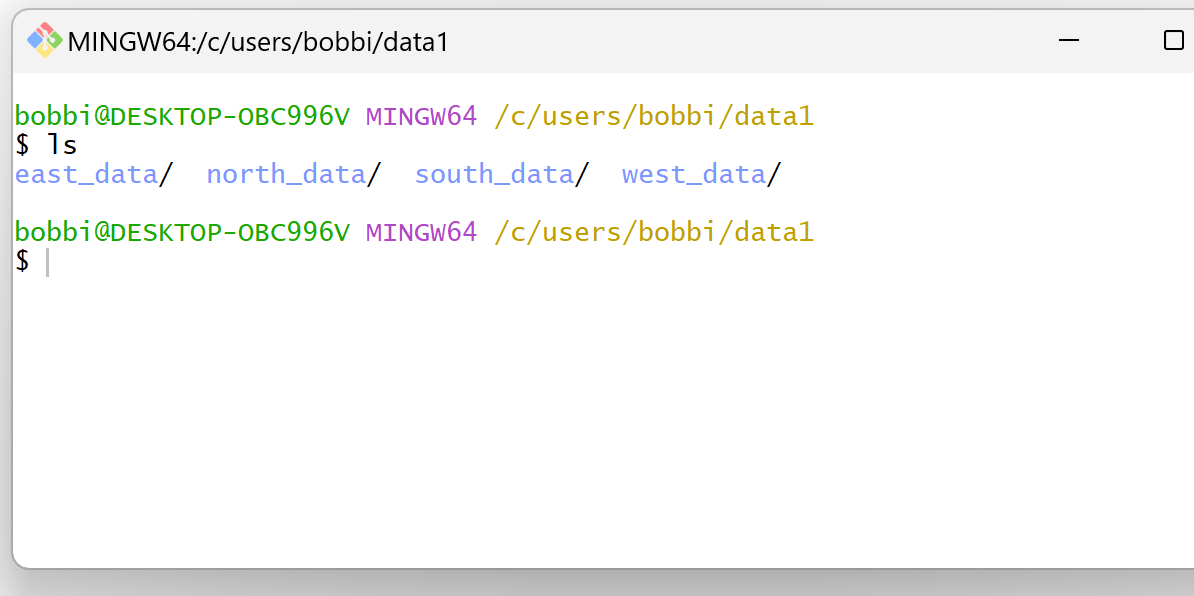
We can see that there are no individual files in our current directory and the following subdirectories exist in the current directory:
- east_data
- north_data
- south_data
- west_data
We can then use the following syntax to count the number of files in each of these subdirectories and return the results sorted by count:
find . -type f | cut -d/ -f2 | sort | uniq -c | sort -nr
The following screenshot shows how to use this syntax in practice:

From the output we can see:
- The subdirectory east_data has 4 files.
- The subdirectory west_data has 2 files.
- The subdirectory north_data has 2 files.
- The subdirectory south_data has 1 file.
Feel free to use similar syntax to return the number of files in each of your own subdirectories.
Related Tutorials
The following tutorials explain how to perform other common tasks in Bash:
Bash: How to Count Number of Unique Lines in File
Bash: How to Count Number of Characters in String
Bash: How to Count Number of Columns in File
